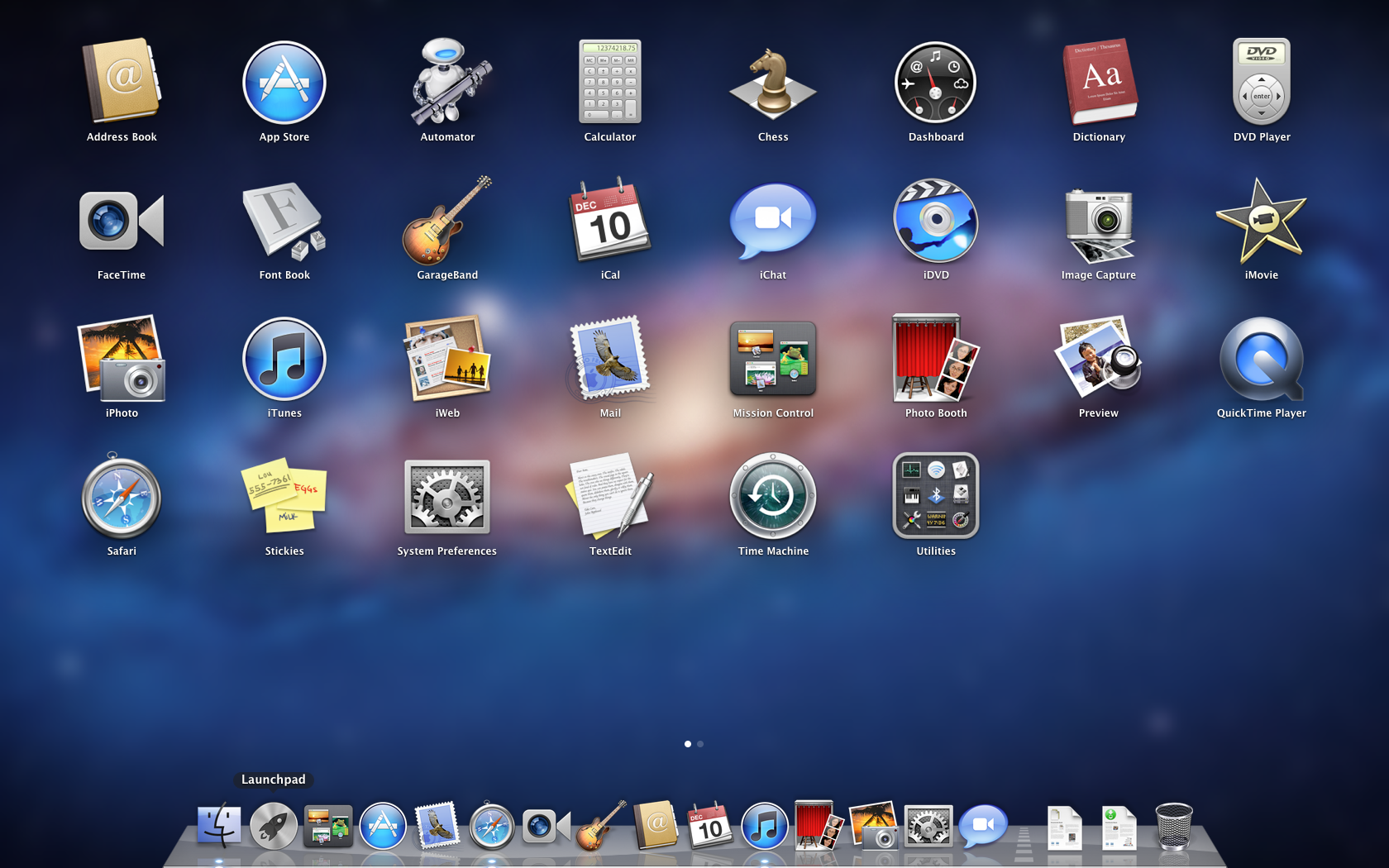
Archive for the ‘OS X Lion’ Category
So, I received an early Christmas present from my brother today. He bought me a 240GB Intel 330 Series SSD sata III drive.
So, I am going to break down my Mid 2011 Mac Mini Server, I will be removing both of the internal hard drives and will only install the SSD for now. I am planning on getting a 1TB hard drive later. So, I will be putting the 2 500GB drives in my Sabio firewire 800 external case.
I was going to post a video but, There was some swearing & the battery on my camera died. (Here is the video I watched http://www.youtube.com/watch?v=13wcKCYo_Xw)
But, I have successfully installed the SSD in my mini.
First step, I cloned my boot drive over onto the SSD with Carbon Copy Cloner
Second, I took apart the mini (literally pretty much to the shell)
Here it were the swearing came in. I missed a piece of tape that holds the SATA cable to the hard drive & ruined my bottom SATA cable ( it is replaceable for $28 ) but removed both hard drive ( I am putting them in an external Sabio case)
(Make sure & cut or remove the black tape)
I managed to install the SSD in the top drive bay. And then put my mini back together.
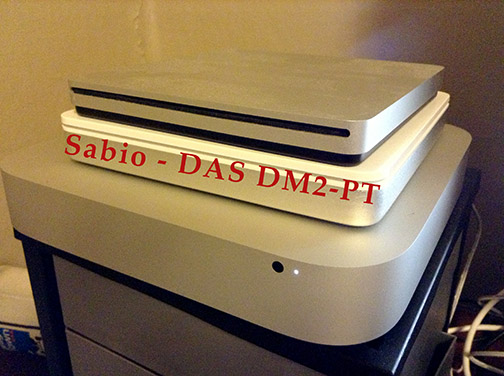
The 2 500GB hard drives went into my Sabio firewire 800 external case. Which sits nicely on my mini.
The speed difference of the SSD is night & day.
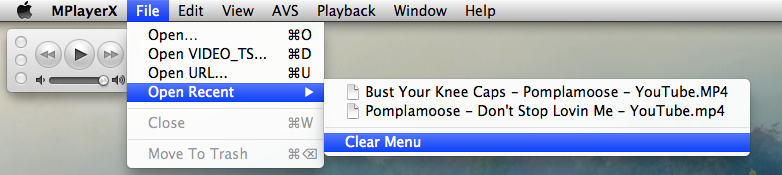
Looking to clear the recents from your dock (at least Quicktime or MPlayerX) this should work with other apps as well:
Launch the app you want to clear the recents from:
Then, file —> open recent —> clear menu
So, you want to install iWeb on your shiny new mac but, have noticed you cannot get iWeb from the App Store. You can however still get your hands on iWeb. Heres how:
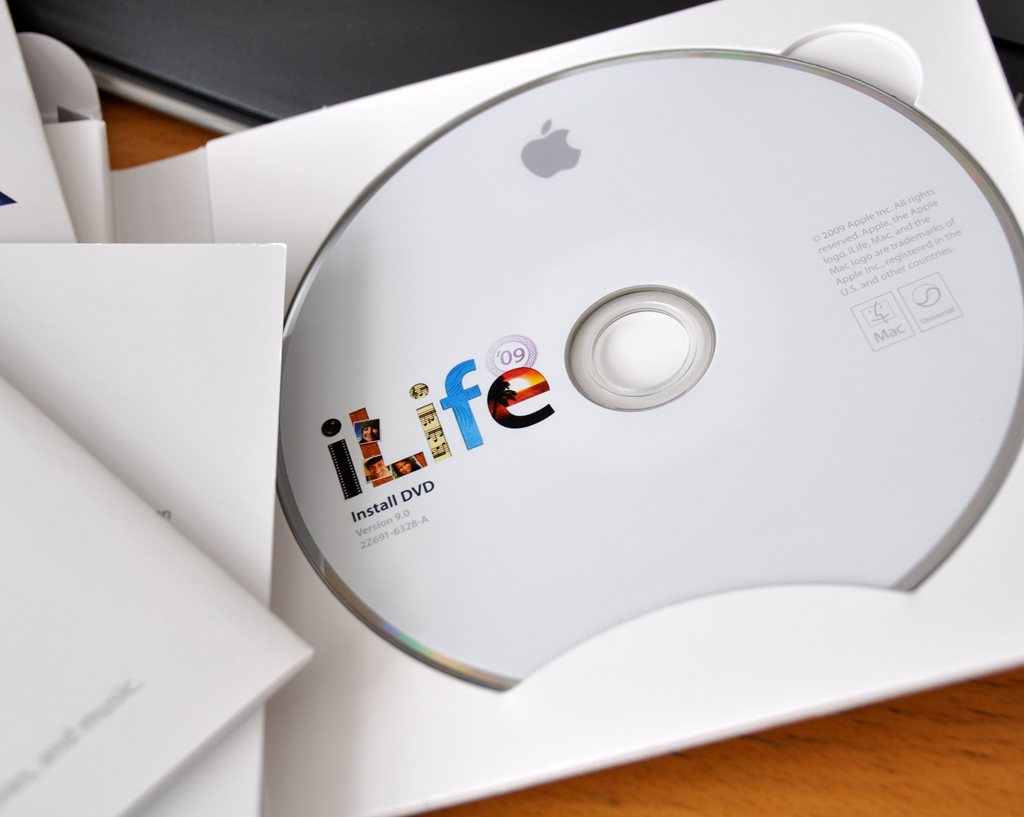
1.) You will need a DVD copy of iLife ’09 or ’11
Both versions have the same version of iWeb
2.) you will need access to an optical drive ( to read the install DVD ) If you do not have an optical drive you will need to get one. I personally have the Apple usb Superdrive
Targus USB 2.0 DVD+/- RW Drive External Drive – DVD±RW drive – Hi-Speed USB
3.) Install. I have already done the install instructions which can be found here
4.) Choose where are you are going to host (upload) your website. I have been using IX Web Hosting since June of 2008 with no issues. I have more info on them & a little video here:
http://jeffnitschke.com/IXWebHosting.html
Mac OS X offers a number of useful options for taking screenshots—images of your screen, or parts of it—that you can use for how-to guides, for sharing with others, or even for sending to tech support. Here’s a quick look at those options, including some tricks for getting the best screenshots.
The simplest screenshot option is to snap an image of your entire screen. You do this by pressing Shift+Command+3. The resulting image is saved, one for each connected display, to your desktop with the name Screen Shot, followed by the date and time.
If you don’t want the entire screen, press Shift+Command+4. Your cursor changes to a marquee for selecting an area of the screen to capture, with the dimensions of the selected area appearing next to the marquee. Release the cursor button to take the shot.

But what if you want to take a snapshot of a particular object on the screen? Press the shortcut for a selection, Shift+Command+4, but instead of selecting an area, press the Space Bar. The marquee turns into a camera icon that highlights any object or interface element beneath it. Click the mouse button, and the highlighted item—and just that item—is captured in your screenshot.
Here’s a quick look at the screenshot I just took of a Finder window using this trick.
A common issue I have is that I select a screen area, but it’s not quite the area I want. Instead of starting over, just press the spacebar—this lets you move the entire selection. If you let go of the spacebar, you can continue to resize your selection from there.
Mac OS X also offers some options for controlled resizing. Press the screen-selection shortcut and select an area of the screen, but then hold down the Shift key. This lets you resize your selection in a single dimension, horizontally or vertically, without changing the other dimension. If you need to resize in the other dimension, release the Shift key and then press it again to reset the axis lock.
You can also resize a selection rectangle proportionately. Just hold down the Option key, and drag the mouse cursor away from or towards the center of the rectangle. The rectangle retains its height-to-width ratio while resizing.
You can even combine all these special features for resizing and moving your selection in order to get the perfect screenshot framing.
What if you plan to edit your screenshot immediately? It turns out that if you add the _Control_ key to either your fullscreen or selection keyboard shortcut, instead of saving your screenshot as a file on the desktop, OS X copies the image to the clipboard. You can then paste it right into an image editor. Or you can just open OS X’s own Preview app and use the New From Clipboard command.
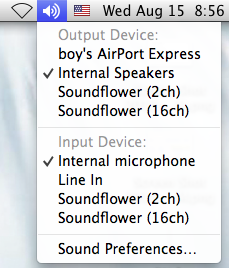
In Mountain Lion (OS 10.8) if you option click on the speaker icon you can select any remote speakers you may have connected to you computer.
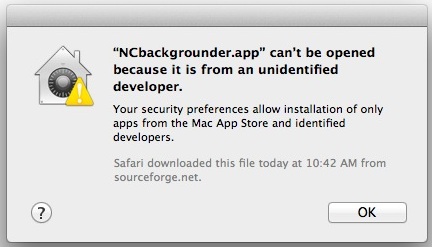
Since OS X Mountain Lion, the Mac defaults to preventing applications from unidentified developers or sources from being launched. You’ll discover the message in OS X 10.8 when you try to launch a Mac app that didn’t come from a verified source or from the Mac App Store, and you’ll get an alert dialog that says “[App name] can’t be opened because it is from an unidentified developer”.

This new security feature is called GateKeeper, and it doesn’t mean you can’t run those unverified apps on the Mac, you just have to either temporarily skirt the security blanket of GateKeeper, or turn off the app limitations entirely.
Temporarily Get Around “App Can’t Be Opened” Alert Message
This is probably the best option for most users, since it maintains some security:
- Right-click (or control-click) the application in question and choose “Open”
- Click the “Open” button at the next dialog warning to launch the app anyway
You can do this with any third party app that gives you this warning dialog and open it anyway.

If you get tired of constantly right-clicking apps to open them, return to pre-Mountain Lion levels of app security by turning off Gatekeepers app verification completely.
Disable GateKeeper’s Unidentified App Developer Prevention Completely
This is generally best for advanced users who know what apps to trust and not to trust:
- Launch System Preferences from the Apple menu
- Choose “Security & Privacy” and then click the “General” tab, followed by clicking the lock icon in the corner to unlock the settings
- Look for “Allow applications downloaded from:” and choose “Anywhere”
- Accept the security warning and allow
- You can now launch any app from any location or developer

Looking for Web Hosting this is who I use IX Webhosting
* Credited website: http://coolestguyplanettech.com/downtown/install-and-configure-apache-mysql-php-and-phpmyadmin-osx-108-mountain-lion
Install and configure Apache, MySQL, PHP and phpMyAdmin on OSX 10.8 Mountain Lion
With the new cat out of the bag, getting the AMP stack running is a little different on OS X Mountain Lion 10.8 (GM Build 12A269) than is its predecessor OS X 10.7 Lion, here is the lowdown on getting Apache, MySQL, PHP and phpMyAdmin running on the new Apple operating system.
Apache/WebSharing
The first difference in the new OS X 10.8 is the dropping of the GUI option to turn on Web Sharing in the System Preferences, it may be gone but Apache is definitely installed in the lower level of the OS and ready to go.
No Web Sharing Option in System Preferences
Apache is pre-installed and needs to be enabled via the command line -/Applications/Utilities/Terminal
to start it
sudo apachectl start
to stop it
sudo apachectl stop
to restart it
sudo apachectl restart
To find the Apache version
httpd -v
The version installed in Golden Master is Apache/2.2.22

After starting Apache – test in the browser - http://localhost - you should see the “It Works!” text.
Document Root
Document root is the location where the files are shared from the file system and is similar to the traditional names of ‘public_html’ and ‘htdocs’, OSX has historically had 2 web roots one at a system level and one at a user level – you can set both up or just run with one, the user level one allows multiple acounts to have their own web root whilst the system one is global. It seems there is less effort from Apple in continuing with the user level one but it still can be set up with a couple of extra tweaks.
System Level Web Root
- the default system document root is still found at -
http://localhost/
It is found in the filing system at -
/Library/WebServer/Documents/
User Level Root
Interestingly the user document root level is missing the ‘~/Sites’ folder in the User account, you need to make a “Sites” folder at the root level of your account and then it will work.
Create a Sites folder at the account root level
Check that you have a “username.conf” filed under:
/etc/apache2/users/
If you don’t then create one named by the short username of the account with the suffix .conf, its contents should be (swap in the real username):
cd /etc/apache2/users sudo nano username.conf
Then add the content below swapping in your username:
<Directory "/Users/username/Sites/"> Options Indexes MultiViews AllowOverride All Order allow,deny Allow from all </Directory>
Permissions on the file should be:
-rw-r--r-- 1 root wheel 298 Jun 28 16:47 username.conf
Restart Apache for the new file to be read:
sudo apachectl restart
Then this user level document root will be viewable at:
http://localhost/~username/
PHP
PHP 5.3.13 is loaded in OSX 10.8 Mountain Lion and needs to be turned on by uncommenting a line in the httpd.conf file.
sudo nano /etc/apache2/httpd.conf
Use “control” + “w” to search and search for ‘php’ this will land you on the right line then uncomment the line (remove the #):
LoadModule php5_module libexec/apache2/libphp5.so
Write out and Save using the nano short cut keys at the bottom ‘control o’ and ‘control x’
Re-load apache to kick in
sudo apachectl restart
To see and test PHP, create a file name it “phpinfo.php” and file it in your document root with the contents below, then view it in a browser.
<?php phpinfo(); ?>
MySQL
MySQL is again a missing component in OS X 10.8 and needs to be dowloaded from the MySQL site use the Mac OS X ver. 10.6 (x86, 64-bit), DMG Archive version (works fine on 10.8).
When downloading you don’t have to sign up, look for » No thanks, just take me to the downloads! - go straight to the download mirrors and download the software from a mirror which is closest to you.
Once downloaded install the 3 components. You may need to adjust the Security and Privacy System Pref to allow installs.

- mysql5.5.xxx.pkg
- MySQLstartupitem.pkg
- MySQLPrefPane
The first is the MySQL software, the 2nd item allows MySQL to start when the Mac is booted and the third is a System Preference that allows start/stop operation and a preference to enable it to start on boot.
You can start the MySQL server from the System Preferences or via the command line

sudo /usr/local/mysql/support-files/mysql.server start
To find the MySQL version from the terminal, type at the prompt:
/usr/local/mysql/bin/mysql -v
This also puts you in to an interactive dialogue with mySQL, type \q to exit.
After installation, in order to use mysql commands without typing the full path to the commands you need to add the mysql directory to your shell path, this is done in your “.bash_profile” file in your home directory, if you don’t have that file just create it using vi or nano:
cd ; nano .bash_profile
export PATH="/usr/local/mysql/bin:$PATH"
The first command brings you to your home directory and opens the .bash_profile file or creates a new one if it doesn’t exist, then add in the line above which adds the mysql binary path to commands that you can run. Exit the file with type “control + x” and when prompted save the change by typing “y”. Last thing to do here is to reload the shell for the above to work straight away.
source ~/.bash_profile
mysql -v
You will get the version number again, just type “\q” to exit.
Set the root password
/usr/local/mysql/bin/mysqladmin -u root password 'yourpasswordhere'
Use the single ‘quotes’ surrounding the password
phpMyAdmin
phpMyAdmin is installed pretty much the same way as before. Fix the 2002 socket error first -
sudo mkdir /var/mysql
sudo ln -s /tmp/mysql.sock /var/mysql/mysql.sock
Download phpMyAdmin, the english.tar.gz package, uncompress and file in the document root renaming folder to phpmyadmin.
Make the config folder
mkdir ~/Sites/phpmyadmin/config
Change the permissions
chmod o+w ~/Sites/phpmyadmin/config
Run the set up in the browser
http://localhost/~username/phpmyadmin/setup/
The new server to be configured is the localhost, click new server and then the only other configurations are the local mysql user and the password in the Authentication tab.
Add in the username, by default “root” is assumed, add in the password, click on save and you are returned to the previous screen.
Make sure you click on save, then a config.inc.php is now in the /config directory, movethis file to the root level of /phpmyadmin and then remove the now empty /config directory.
Now going to http://localhost/~username/phpmyadmin/ will now allow you to interact with your MySQL databases.
Thats it you now have the native AMP stack running ontop of the Mountain Lion.
If you have found the information here useful please donate.
So, I installed OS X 10.8 Mountain Lion today and I am happy to report that it seems to be running the same as it had in OS X 10.7 Lion. After I turned on dictation “located in your system preferences” I was pleasantly surprised that Dictation works in iWeb.
If you have more than 1 iWeb domain file you will need to use the iWeb Multi-domain tool. Here is the link:
Youtube video:
Sorry, the dictation portion of the video is a little choppy. I need a new machine.
http://jeffnitschke.com/Multi_Domain_iWeb.zip
And if you haven’t got a 3rd party web host yet I would suggest IX Web hosting.
I have been using IX Web hosting for several years with little to no problems “usually the problem was something I did” and they have been quick to solve any issue I have come across. The have plans that start at $3.95 a mo (USD) and their customer service is top notch.
http://jeffnitschke.com/IXWebHosting.html
http://jeffnitschke.com/wordpress/2012/06/how-do-i-move-my-mobileme-site-ix-web- hosting-blog/
Mountain Lion gets released, with Messages, Notification Center, systemwide Sharing, and more. Built in iCloud to keep customers’ content up to date.
Banished from the iLife suite starting with the 2011 revision, iWeb is fully compatible with OS X 10.8 Mountain Lion, an up and coming version of Apple’s desktop operating system currently in beta testing.
iWeb 3 has been tested on OS X Mountain Lion “10.8″ and that we’re “glad to announce that iWeb 3 is fully compatible with [the] upcoming Apple desktop operating system.”
Still looking to host your iWeb site? I have been using IX Webhosting for several years now with little to no problems “usually the problem was something I did” and they have been quick to solve any issue I have come across.
http://jeffnitschke.com/IXWebHosting.html
http://jeffnitschke.com/wordpress/2012/06/how-do-i-move-my-mobileme-site-ix-web- hosting-blog/
* Update:
install took about 30 minutes & iWeb appears to be working like it was in OS X Lion
Click on the desktop, then use the GO menu then, hold the “option” key on the keyboard.
Roundup of OS X 10.8 Mountain Lion Features and Notes – Mac Rumors.
iWeb appears to still run under Mac OS 10.8 Mountain Lion
* Update: 7/25/2012
install took about 30 minutes & iWeb appears to be working like it was in OS X Lion
I ran into this issue & talked to someone at the Apple Store that hadn’t heard of this issue and said if I brought my computer in they could re-install Lion for me and then run Time machine to restore my files. Unfortunately, I didn’t have transportation to get my, iMac down to the Apple Store. I did however, have another boot disk with Snow Leopard on it & a handy copy of my 10.7 Lion installer “saved a back-up copy on my iPod I’m weird like that” and was able to re-install lion over the 10.7.3 update. Then I ran the 10.7.3 combo update that I downloaded via the direct link & now I am back up and running. I have also found that Apple has a little app called “Lion Recovery Disk Assistant” that allows you to make a bootable flash drive which I highly recommend “it’s nice to have an emergency boot disk” it will allow you to access all the recovery tools & re-install, access safari, and enter time machine.
Heres the link:
http://support.apple.com/kb/DL1433
Some 10.7.3 users encounter nasty bug; fix available
There are two kinds of people in this world: Those who rush to install every new software update that Apple offers up, and those who hold off to make sure the coast is clear before they click the Install button. Some aggressive installers who were quick to install Mac OS X Lion 10.7.3, released Wednesday, encountered a troubling bug that surely left the “wait-and-see” crowd prouder than ever to be patient.
Some folks who installed 10.7.3 via Software Update—using the traditional update approach—discovered upon rebooting that every app they launched would crash, and the ensuing error dialog box sported bizarre overlays: gradient boxes reading “CUI CUI,” along with bright red question marks.

We’ve reached out to Apple for an explanation of what went wrong, though the company hasn’t immediately replied. A discussion thread at the company’s support forum has swelled to more than 130 posts about the issue.
Macworld spoke to an affected user who responded to us on Twitter. Thomas Scrace told us via email that he installed 10.7.3 via Software Update, and encountered both issues described above: “If you try to open ANY application, it crashes immediately,” he wrote.
The good news is, there’s a fix. The bad news is, it isn’t simple to perform. The combo updater—the version that could also update older versions of Lion—seems to resolve the issue for afflicted users. The problem, however, is that getting the installer to run can be a bit of an issue, if your Web browser crashes each time you try to download it.
Writes Scrace, “I have since fixed the issue by starting my computer up in FireWire Target mode and connecting it to another MacBook Pro.” To launch target disk mode, hold down the T key when your problematic Mac boots up. Download the Combo Updater from a different, working Mac, and then install it to the troubled Mac over FireWire.
Scrace adds: “I’m back up and running, but only after losing half a day to this mess.”
It’s worth emphasizing that while many users are afflicted with this issue, many more have installed 10.7.3 without any trouble. We’ll report back if we hear more from Apple on the problem.


How do I move my MobileMe site? | IX Web Hosting Blog
2012
posted by Jeff Nitschke on iWeb, OS X Lion, Web hosting
2 comments
How do I move my MobileMe site? | IX Web Hosting Blog.
How do I move my MobileMe site?
June 1st, 2012 by IX: Rob G.
Attention all Apple users!
If you haven’t heard, come June 30th, Apple will no longer be supporting MobileMe accounts. Because of this, any iWeb site you have uploaded to MobileMe will no longer be up and running.
But don’t worry!
IX Web Hosting provides web and mail services which will allow your site to remain active, and moving your site over to us is a snap. I’ve put together this quick walkthrough to show you how easy it is to switch your iWeb site from MobileMe over to IX Web Hosting in just 5 simple steps:
1. When you create a hosting account with us (if you don’t have one already click HERE to sign up) you will receive a ‘Welcome’ email detailing all login and server information you’ll need. If you signed up previously and lost your ‘Welcome’ email, contact us and we’ll help you find this info.
2. Log into your IX Web Hosting account. Click the ‘Manage’ button for your hosting product and add your domain name under ‘Domains’. Ignore the message about ‘top level domain’ and be sure ‘Web Service’ is turned on. Also, once finished, write down the IP address. (Take note if the word ‘shared’ appears next to it).
3. Open iWeb. Click the domain name on the left to bring up the publishing settings. You will see “Publish to: ‘MobileMe’“. Instead, select “FTP Server” from the drop down menu and enter your IP address or web server name indicated in your welcome email.
4. From the welcome email, you’ll need your Server Address, Username, and Password to fill out the rest of the “FTP Server Settings”. Leave the “directory/path:” field blank.
5. Once finished, click ‘publish’ and thats it! You’ve migrated your website over to our service just with a few simple clicks inside your iWeb program.
To make sure your site is up and working the way you want it, open up a browser window and type in the IP address you wrote down earlier unless it had ‘shared’ next to it. If you have a ‘shared’ IP address, you click ‘Web Options’ in the ‘Manage’ section of your hosting account, click the domain name, and scroll to the bottom to click ‘Instant Access Domain Alias,’ as seen below.
Once you’re sure it’s working, update your name servers with your current registrar using the information provided to you in the ‘Welcome’ email. If you’re not sure how to change your name servers, consult this:
http://www.ixwebhosting.com/hosting-manual/domain-name-system
Just visit http://www.ixwebhosting.com/support if you have any questions.
http://www.ixhostingreviews.com
Share this:
Like this: